
MyPeopleDoc is based on a digital safe architecture in the legal sense of the term, framed by law n° 2016-1321 and article L.137 of the Postal and Electronic Communications Code. Connecting to your account opens a compliant archiving system according to the AFNOR standard NF Z42-020, where each session is tracked to ensure the integrity of the deposited documents. Understanding this technical framework changes the way access issues are approached.
NF Z42-020 Standard and MyPeopleDoc Connection Traceability
The NF Z42-020 standard imposes specific requirements regarding integrity, traceability, and restitution of archived documents. Each connection to MyPeopleDoc generates an entry in a timestamped access log. This mechanism is not trivial: it directly contributes to the evidential value of your payslips and contracts stored in the safe.
In practice, this means that the connection logs are part of the legal archiving system. An unsuccessful access, a reset attempt, or a change of email address leaves a trace. We recommend not to multiply erroneous connection attempts without reason, as certain security configurations may temporarily lock the account after several consecutive failures.
For employees wishing to delve into the procedure for connecting to my MyPeopleDoc account, the starting point is always the email address associated during the initial activation by the employer.
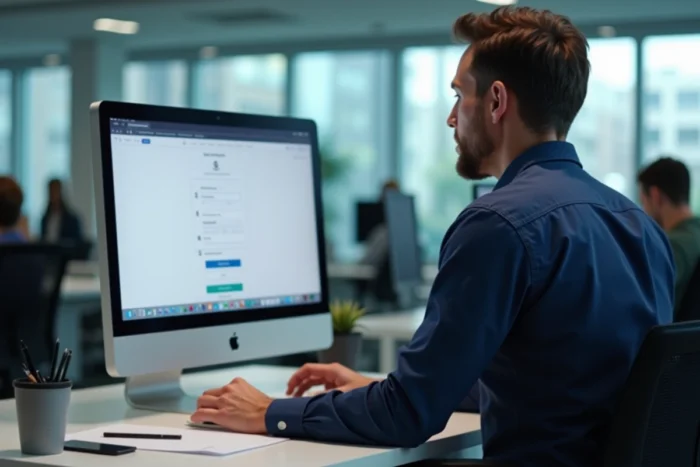
Employer Invitation Activation: A Often Misunderstood Prerequisite
Unlike most online services, it is impossible to create a MyPeopleDoc account independently. Opening the safe must go through an invitation sent by the employer (or by the authorized HR provider). Without this invitation, the account creation page remains inaccessible.
This operation creates frequent confusion. An employee who changes companies and tries to reconnect with their old credentials may encounter a blockage. The personal safe remains accessible after departure, but the email address used must match the one recorded at the time of activation.
Check the Activation Email Address
The classic trap: the employer activated the account with the employee’s professional email address. After departure, this address is deactivated on the company side. The employee then loses access to the password reset link, as the recovery email goes to a mailbox they no longer check.
We recommend checking and changing the email address associated with the account before any job change or departure from the company. This operation is done in the account settings, under “Personal Information.” Switching to a personal address ensures continued access to the safe.
Resolving MyPeopleDoc Connection Blockages
The majority of connection failures fall under three identifiable causes. We classify them in decreasing order of frequency.
- Forgotten or expired password: the reset can be done from the mypeopledoc.com login page via the “Forgot password” link. The reset email arrives at the address registered in the account, not necessarily the current professional address.
- Email address unknown to the system: if activation was done with a professional email that has since been deactivated, you need to contact Novapost support (formerly PeopleDoc) to link the safe to a new address. The HR service of the former employer can also intervene.
- Account locked after multiple attempts: a waiting period applies before you can retry. Forcing the connection repeatedly only extends this delay. Waiting about thirty minutes before a new attempt is the most effective method.
The Specific Case of Account Linking
An employee may accumulate several MyPeopleDoc accounts throughout their career, one for each employer that activated the service. The account linking feature allows these safes to be grouped under a single email address and a single password.
This operation is performed from the settings of the main account. It requires access to the email addresses associated with each secondary account. Once the linking is done, all documents (payslips, certificates, contracts) become accessible from a single entry point.
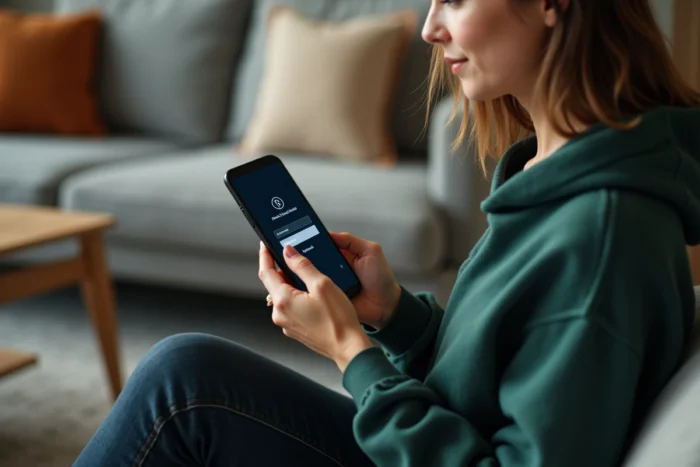
MyPeopleDoc Mobile Application: Access and Limitations
The mobile application offers the same consultation functions as the web version. The login uses the same credentials (email address and password). No separate account is necessary.
A technical point to note: the application does not offer native biometric login on all devices. Entering the password remains the primary authentication method. If your mobile password manager supports autofill, we recommend enabling it to avoid repeated entry errors that lead to locking.
Document downloading works differently depending on the operating systems. On iOS, PDF files open in the integrated reader and can be exported to the Files app. On Android, downloading occurs in the default folder of the browser or app.
Preparing Your Account for a Change of Employer
The MyPeopleDoc safe belongs to the employee, not the company. After departure, access to already deposited documents remains active. The new employer, if also using PeopleDoc, will send a new invitation that can be linked to the existing account via account linking.
- Replace the professional email address with a personal address in the account settings, ideally several weeks before the actual departure.
- Download a local copy of sensitive documents (latest payslip, employer certificate, work certificate) as a precaution.
- Ensure that the current password is well memorized or stored in a password manager, as recovery will depend on the registered email address.
The portability of the safe remains the strong point of the system. As long as the recovery email address is valid, the account survives all changes of employer without loss of documents or interruption of access.